
| Prev | Next |
Editing Source Code
Enterprise Architect contains a feature-rich source code editor that helps you to view, edit and maintain your source code directly inside the tool. Once source code has been generated for one or more Classes it can be viewed in this flexible editing environment. Seeing the code in the context of the UML models from which it is derived brings clarity to both the code and the models, and bridges the gap between design and implementation that has historically introduced errors into software systems.
The Source Code Editor is fully-featured, with a structure tree for easy navigation of attributes, properties and methods. Line numbers can be displayed and syntax highlight options can be configured. Many of the features that software engineers are familiar with in their favorite IDE, such as Intelli-sense and code completion are included in the editor. There are many additional features, such as macro recording that makes it easy to manage the source code inside Enterprise Architect. There are also many options for managing the code, available through the code editor context menu, toolbar and function keys.
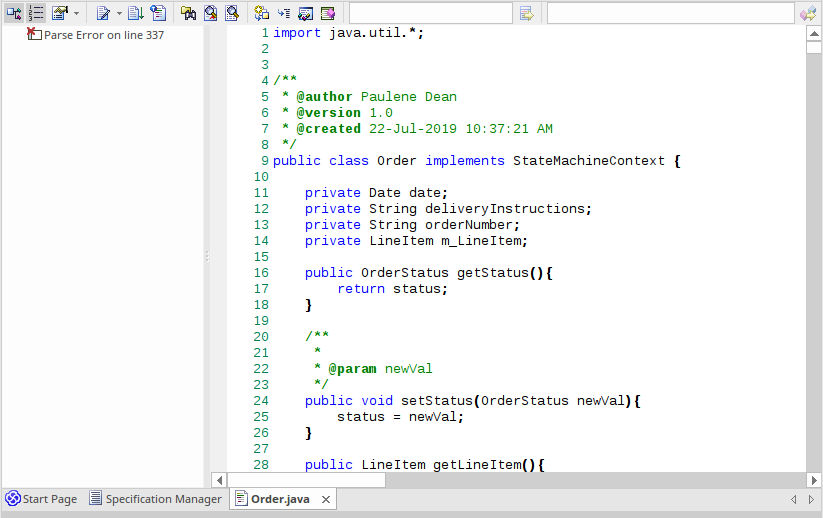
For most programming languages a single file is created from a UML Class, but in the case of C++ both header and implementation classes are created and the source code editor displays these files in separate tabs.
A number of options change the way the source code editor works; they can be altered using the 'Preferences' dialog available from the Start ribbon:
'Start > Appearance > Preferences > Preferences > Source Code Engineering > Code Editors'
There are variants of the Source Code Editor, with different access methods. The variants are discussed in the Compare Editors topic.
Access
|
Ribbon |
Execute > Source > Edit > Open Source File (external file) or Execute > Source > Edit > Edit Element Source (for an existing source file) or Execute > Source > Edit > Edit New Source File or Design > Element > Behavior or Develop > Source Code > Behavior |
|
Keyboard Shortcuts |
or (for existing code for model elements) (to locate external files) |
Facilities
Facility |
Description |
See also |
|---|---|---|
|
Source Code editor |
By default the Source Code editor is set to:
 If you are editing an XML file, the structure tree mirrors the exact order and structure of the document. 
|
|
|
Structure Tree |
The file structure tree is available for supported language files, such as C++, C#, Java and XML. The tree can be helpful to navigate content quickly in much the same way a table of contents would for other documents. |
|
|
Simulation Behaviors |
If you are editing the behaviors of the elements in a StateMachine or Activity diagram, the Code Editor allows you to list and edit the behaviors of all elements in the diagram together, using a structure tree.  In this illustration you can see a number of States within a StateMachine, each of which has operations and Behaviors, and all of which are listed together and can be selected without leaving or changing the editor window. |
Notes
- For most selected elements you can use the keys or to view the source code.
- When you select an element to view source code, if the element does not have a generation file (that is, code has not been or cannot be generated, such as for a Use Case), Enterprise Architect checks whether the element has a link to either an operation or an attribute of another element - if such a link exists, and that other element has source code, the code for that element displays
- You can also locate the directory containing a source file that has been created in or imported to Enterprise Architect, and edit it or its related files using an external editor such as Notepad or Visual Studio; click on the element in the Browser window and press